How to export your tabs from OneTab
October 2026 · 3 min read
Short answer: open the OneTab page, click Export / Import URLs at the top right, copy all the text and save it as a .txt file. That file is your backup, and TabCabin imports it as it is: Settings → Data → Import from a file.
Why export at all
Unless you pay for its Backup & Sync, OneTab keeps its lists inside the browser, on this computer only; even its own weekly backup stays in the same browser profile. When the extension is removed, the profile is reset or the computer is replaced, the lists go with it. An export is a free backup you can keep anywhere.
1. Export the lists
- Right-click the OneTab icon and choose Display OneTab.
- At the top right of the page, click Export / Import URLs.
- Click in the box with the addresses, select everything with Ctrl+A and copy it withCtrl+C.
- Paste it into a text editor and save it as a file, for example onetab.txt.
Each line is one tab: the address, a vertical bar and the title. A blank line starts the next group. Stars and locks are not part of the file, so note which groups mattered before you move.
2. Keep the file somewhere safe
Put it in a cloud drive or send it to yourself. OneTab adds new lists over time, so export again every few weeks, or before you reinstall the browser.
3. Bring the lists into TabCabin
A text file is a backup you can restore, but not a place to work. TabCabin is a free, open-source extension that turns the new tab page into boards, and it reads the OneTab file directly.
- Get TabCabin for Chrome, Edge or Brave and open a new tab.
- Open Settings → Data → Import from a file and choose the .txt file.
- The tabs arrive in a new workspace, “Imported from OneTab”, with each OneTab group as a group of its own.
- Rename the groups, drag them where they belong and add a note to whatever you want to remember.
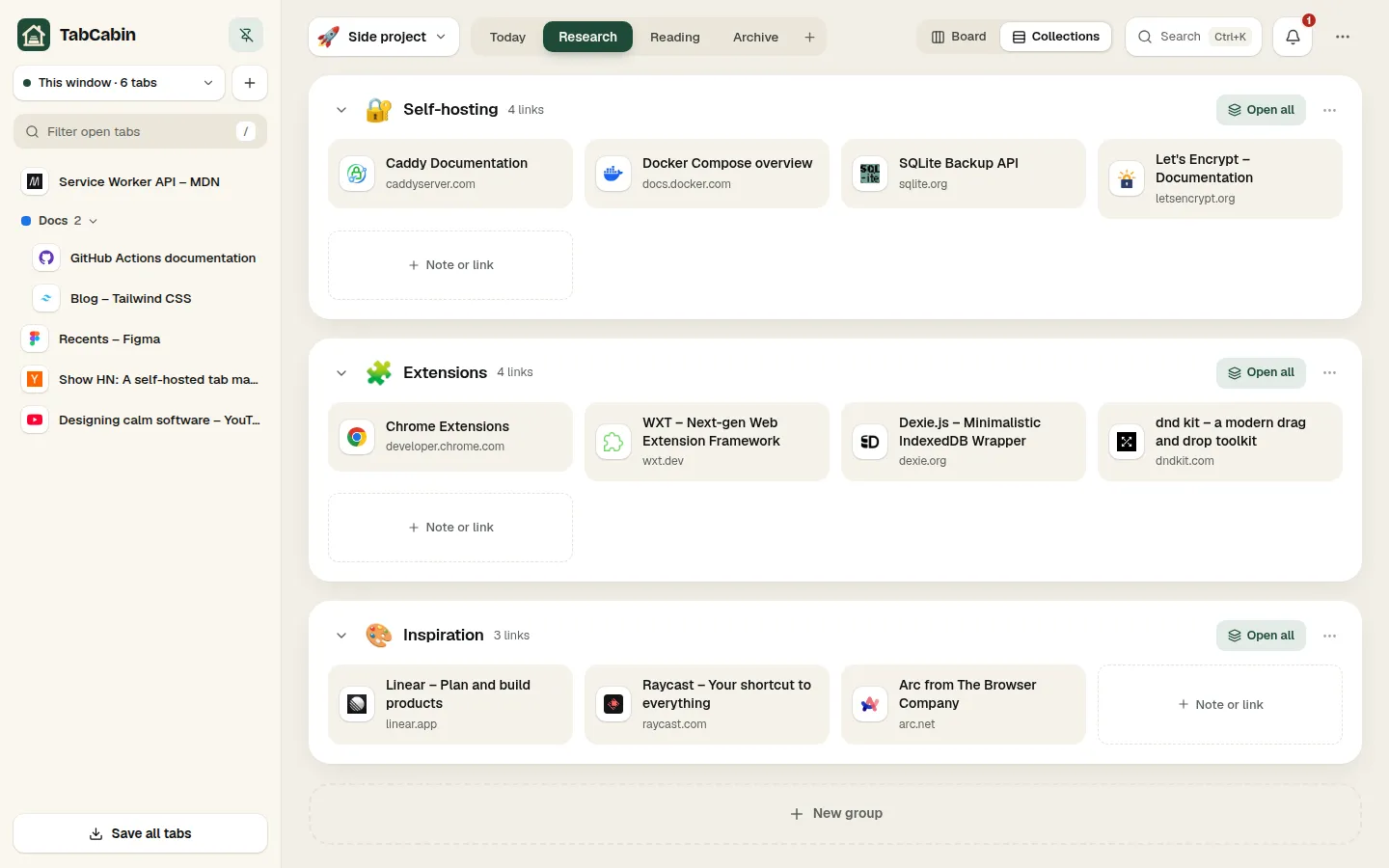
From then on, Save all tabs in the tabs panel does what the OneTab button did, except that the tabs land in groups you name, next to your notes and to-dos.
Questions
Does importing change anything in OneTab?
No. TabCabin only reads the file, so keep OneTab until you are happy with the boards.
Can I turn the lists into browser bookmarks instead?
Yes. Paste the text into the OneTab to bookmarks converter: it makes a bookmarks file with a folder per group, which any browser can import.
Can I import a newer export later?
Yes. Every import goes into a new workspace, so nothing you already have is overwritten.
What else does TabCabin have that OneTab doesn't?
Notes, to-dos and reminders next to links, search across everything, and sync between your computers when you sign in. The OneTab comparison has the full table.